How to use this guide
Each workflow below is a conceptual path through the app. For numbered steps with screenshot filenames, see Step-by-step workflows. For sample data stories see Workflow Examples.
| Deep dive | When to open it |
|---|---|
| Step-by-step workflows | Numbered procedures + screenshot drop list |
| Settings & Radar Guide | Weather vs USN maps, radar loop, GPS center |
| Owner & Vessel Registration | Skipper → Vessel: primary vessel, MMSI, thru-hulls, AIS catalogue sync |
| Workflow Examples | Sample data stories — inventory, maintenance, surveys, insurance |
| Backup & Restore Guide | Full or partial export, AirDrop, Android bridge, import |
| Feature reference | Module-by-module capability list |
Weather radar vs USN charts
- Open the WX Radar tab.
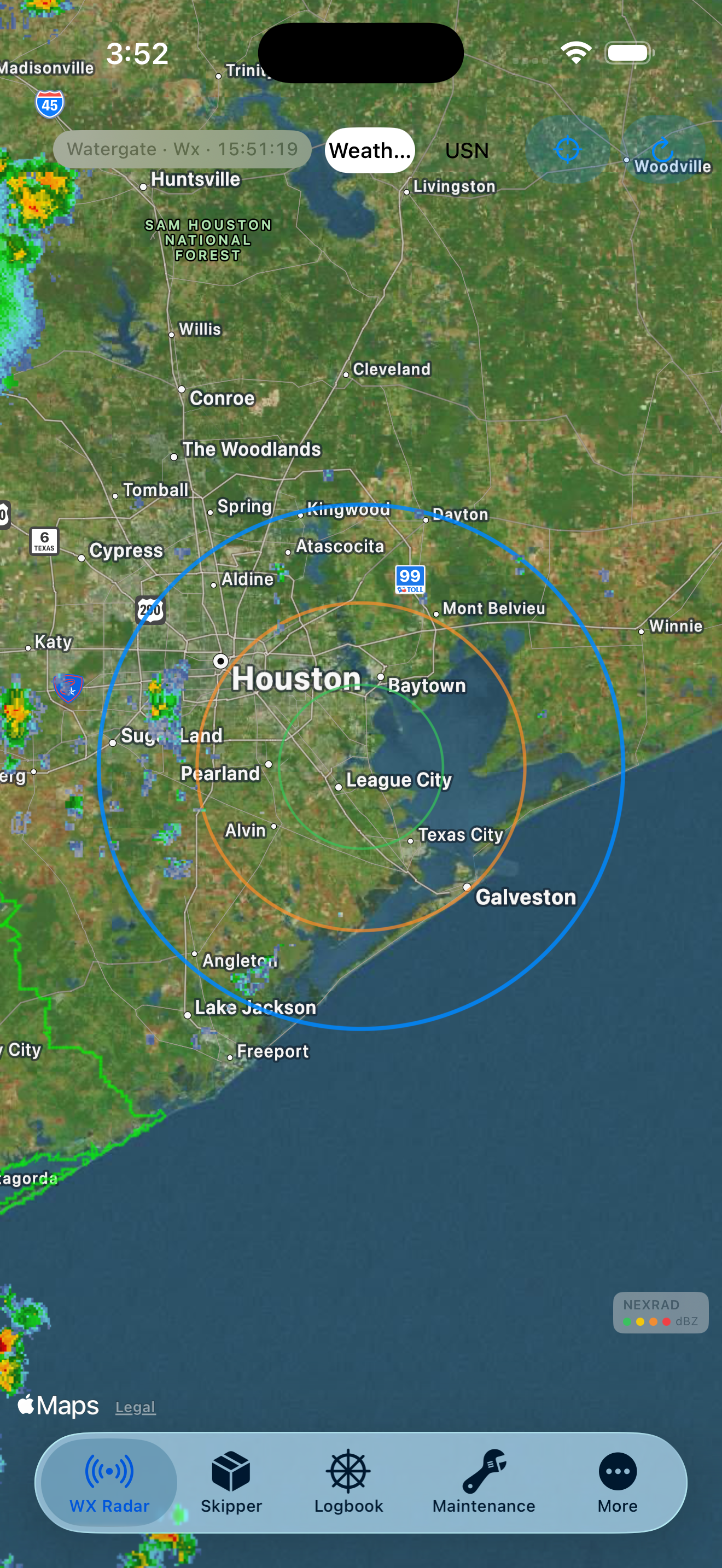
- Weather (WX) — play the NEXRAD animation; use warnings labels as configured in Settings.
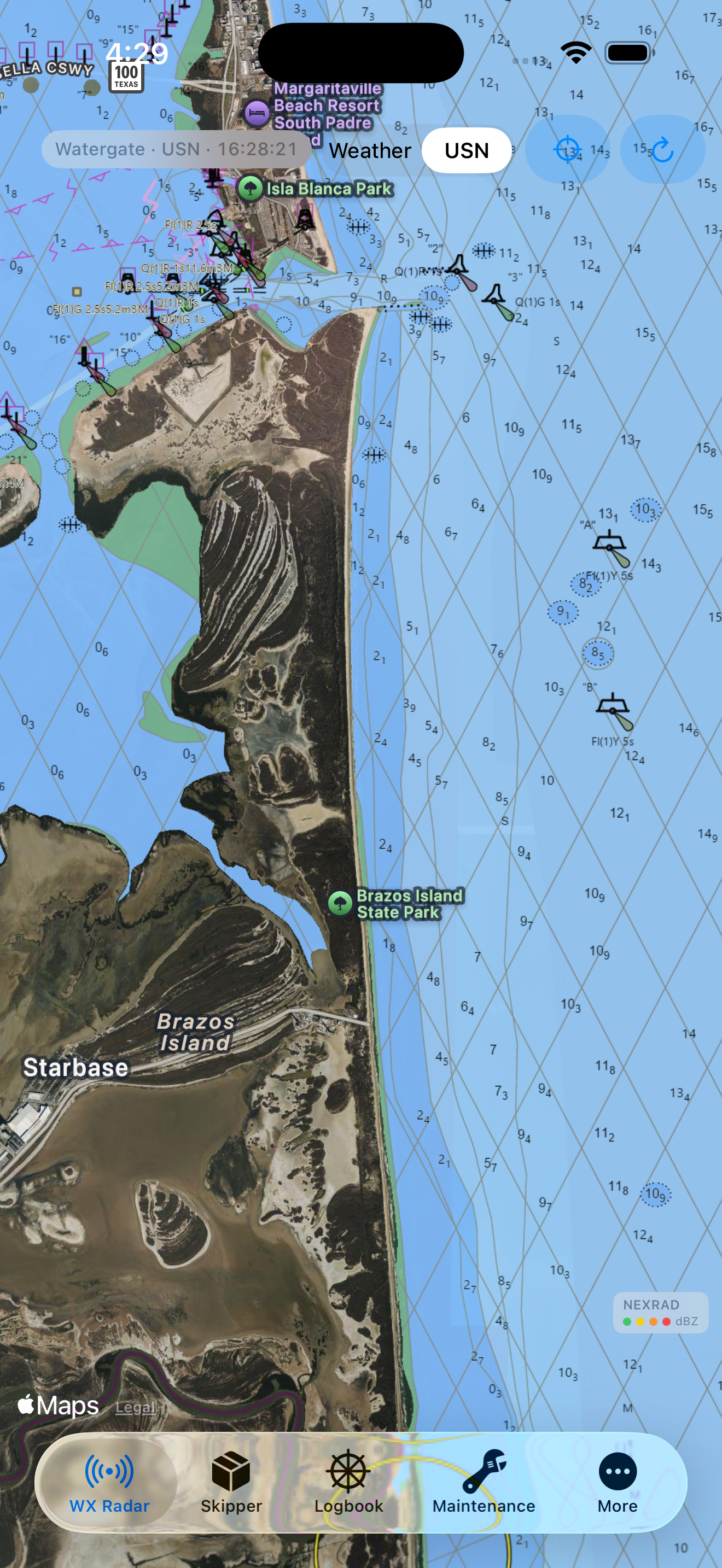
- USN — load chart overlays: NOAA ENC depth + aids in U.S. waters; GEBCO + EMODnet + OpenSeaMap in the tropics; free global stack elsewhere.
- Recenter on phone GPS or marina preset from Settings. Optional experimental NMEA boat position on vessel Wi‑Fi.
- Optional: open Marine Conditions (waves control) for local wind, seas, and tides — see below.
Marine Conditions on WX Radar
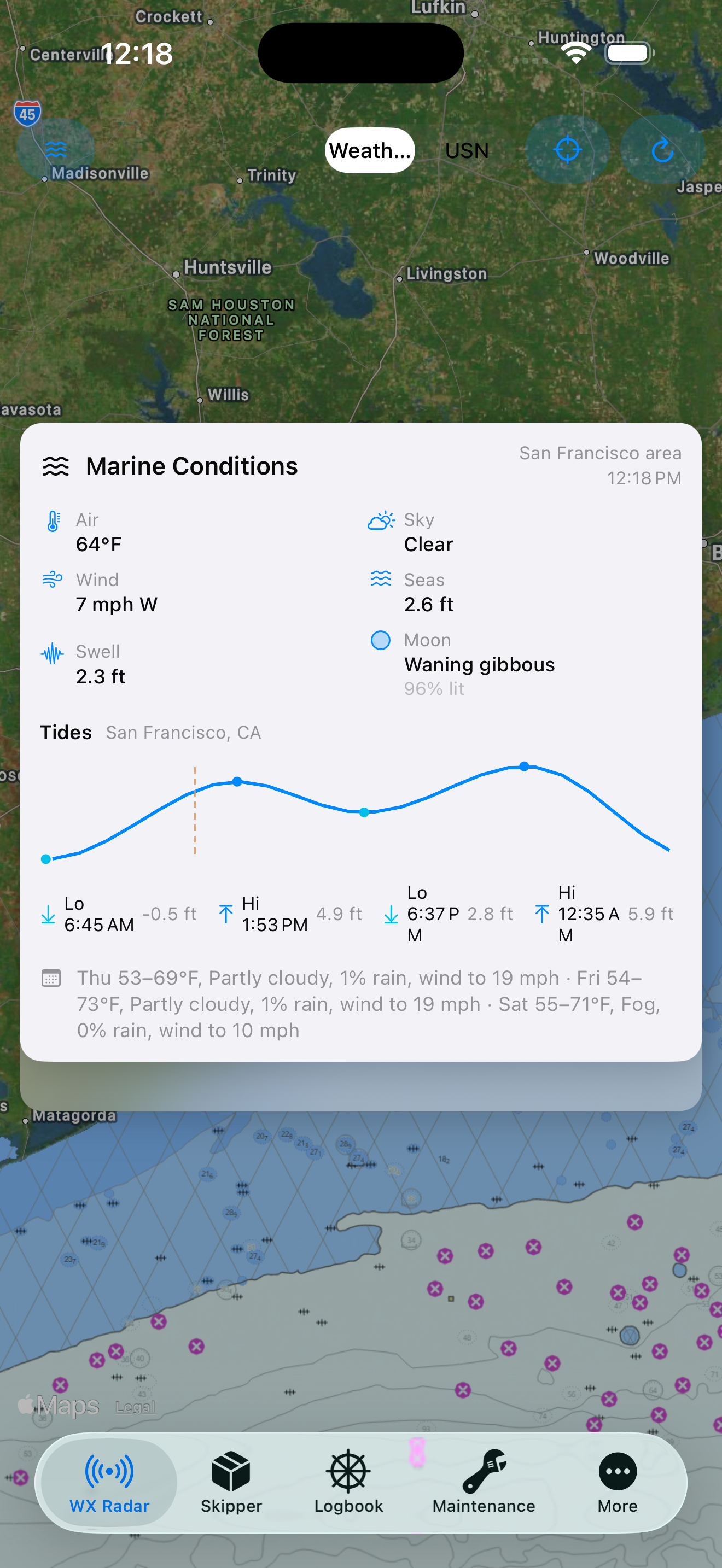
Marine Conditions is the named modal panel for local current weather, seas, tides, moon, and forecast — available from the map without leaving WX Radar. The same panel is used in Captain’s Log new entries.
- Open the WX Radar tab (Weather or USN mode).
- Tap the waves control at the top of the map toolbar.
- Wait for Marine Conditions to load (network required): air, sky, wind, seas/swell, moon, NOAA tide station, high/low tides, tide curve, short forecast.
- Note the location source label (device GPS area vs Galveston Bay default when inland).
- Tap waves again, or the dimmed area around the panel, to dismiss and return to the full map.
Sources: Open-Meteo weather & marine APIs; NOAA CO-OPS tides. Product story · Feature reference
Captain’s Log — Marine Conditions
- Open Logbook → Journal → create a new entry.
- Allow location — entry GPS is always your device (never swapped for a weather default).
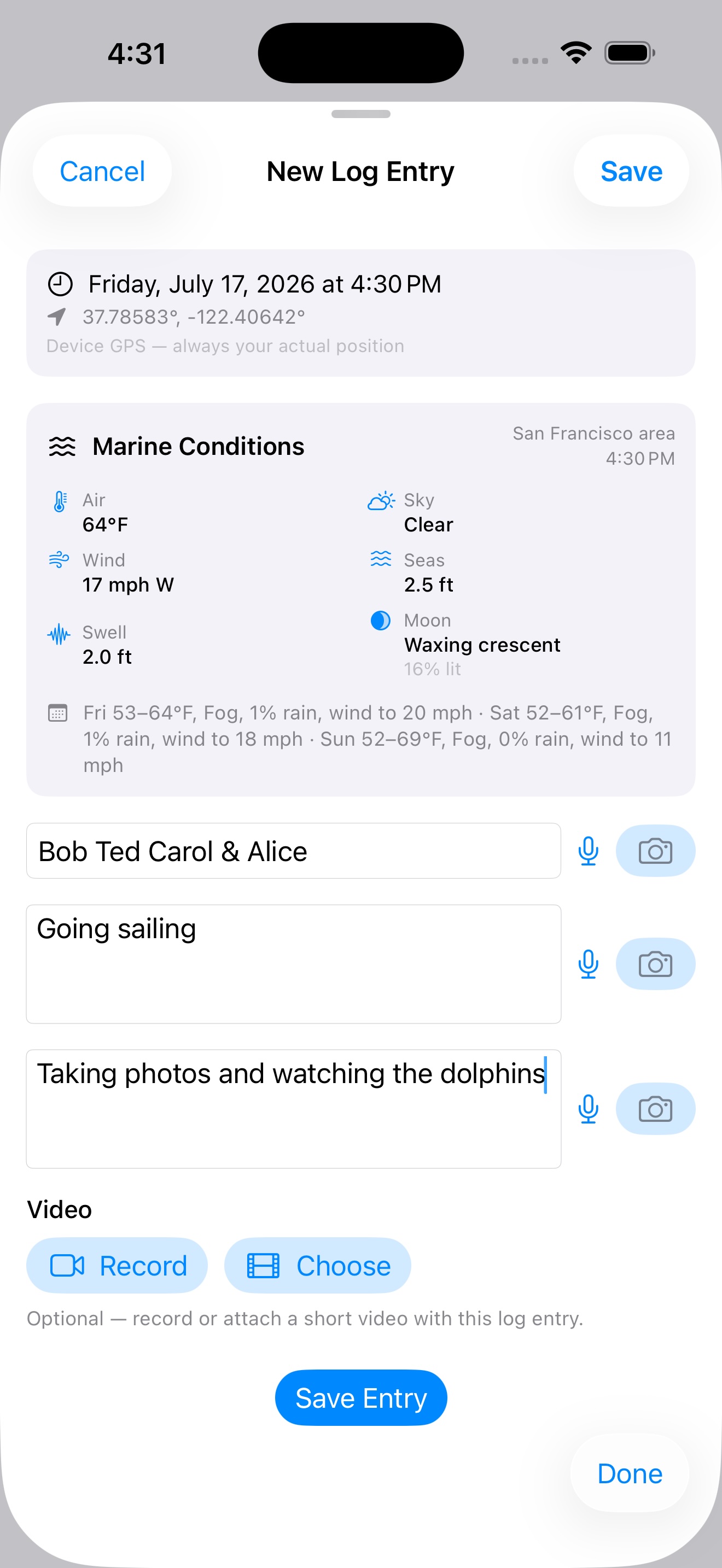
- Wait for the Marine Conditions panel (same named panel as WX Radar): air, sky, wind, seas/swell, moon, NOAA tide station, high/low tides, tide curve, short forecast.
- Note the source label (coastal station area vs Galveston Bay default when inland).
- Fill guests, plan, notes; save. The list row shows weather summary + GPS.
- Photos or video can be attached to the log entry.
Pre-departure workflow (guided)
- Open More → Utilities → Pre-Departure Workflow.
- Overview — confirm radar refresh time, map emphasis, and any overdue or due-soon maintenance schedule items.
- Checklists — select lists (defaults: Pre-departure, Engine checks, Shore Power, Lifejackets) and check off each step.
- Finish — optionally create a Captain's Log entry and enable position logging for the trip.
Manual path: Radar → Checklists tab → Log. Radar prefs: Settings & Radar Guide · Release detail: release notes
Maintenance schedule reminders
- Open Maintenance → Schedules — bundled templates include oil change, zincs, haul out, and more.
- Mark an item complete at least once so the app knows its next due date.
- In Settings → Maintenance, turn on reminders and choose how many days before due you want a nudge.
- Local notifications fire for due-soon, due-today, and overdue items — no account required.
Engine hours stopwatch & fuel log
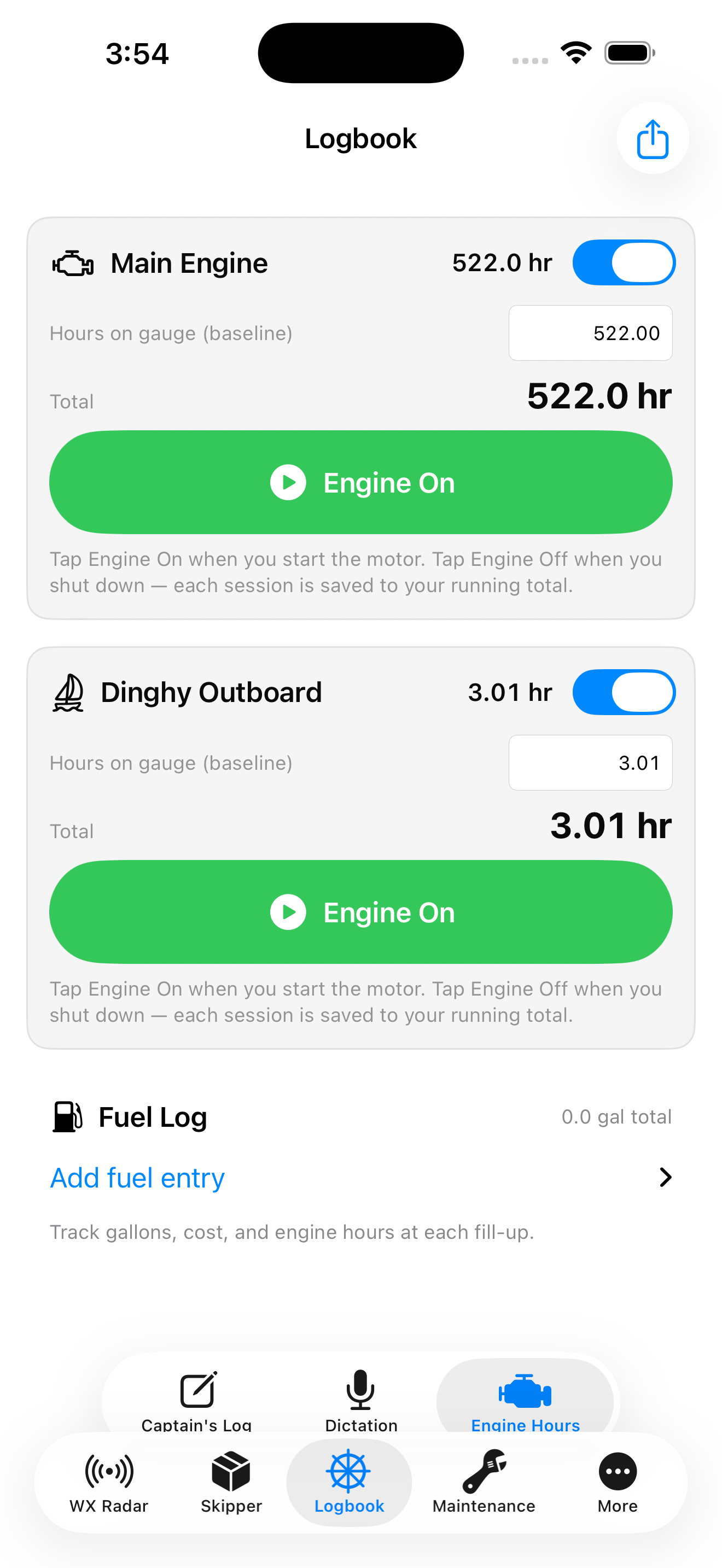
- Open Logbook → Engine Hours — enable Main Engine and/or Dinghy Outboard.
- Set Hours on gauge (baseline) once to match the physical meter.
- Tap Engine On when you start the motor; tap Engine Off when you shut down — sessions save automatically with live timer while running.
- Total = baseline + completed sessions + current session.
- Scroll to Fuel Log — gallons, price/gallon, vendor; optionally record main-engine hours at fill.
iCloud sync (optional)
Keeps JSON text data aligned across iPhones and iPads signed into the same iCloud account. Good for inventory lists, log entries, schedules, checklists, and problem cases — not for photos or PDFs.
Limitations
- JSON only — item photos, trail PDFs, survey attachments, and backup archives are not synced. Use Backup & Restore to move media to a new phone.
- Last-write-wins — if you edit the same record on two devices offline, the newer save replaces the older one when sync runs.
- Same Apple ID — both devices must use iCloud Drive and be signed into the same account.
- Not instant — sync runs when you open the app, return from background, or tap Sync Now.
Simple example — iPhone + iPad
- On your iPhone: More → Utilities → iCloud Sync → turn sync on → select Inventory and Captain's Log → tap Sync Now.
- On your iPad (same Apple ID): open the same screen, enable sync, select the same modules, tap Sync Now.
- Add a spare-part item on the iPhone → wait a few seconds or bring the app to foreground on the iPad → the item appears after the next sync.
- To move photos with the item, export a Backup file on the old device and Restore on the new one.
Inventory — find gear & track loans
- In Inventory, create nested locations (locker → bin → shelf).
- Add an item with quantity, notes, photo, and optional dictation.
- Record a loan when gear leaves the boat — person, date, return status.
- Export inventory PDF or CSV from Reports for yard or insurance.
Searching for inventory items is simple. In the search bar - if you were to type "ater", the application will find Water and Water Maker Filters.
Scenario: spare parts locker example
Maintenance problem case (your boat)
- Open Maintenance → Problem / ID / Test and start a New Problem Case.
- Fill Problem, Identification, and Testing — add timeline notes and photos as you diagnose.
- Record service items on the same tab if needed (vendor, PO, completion photos).
- Export a shipyard PDF — header uses your registered vessel name, HIN, MMSI, and owner contact.
Maintenance items support All / Some / One selection for reports. Scenario: workflow examples
Customer Boat — service & estimates on other vessels
Intrepid Mariner is primarily a single-boat application centered on your primary vessel (the one you register under Skipper → Vessel). However, the Customer Boat tab lets you define and work on completely separate boats.
This feature is especially valuable for:
- Marine service companies and technicians who go out to customers’ boats on the water to perform estimates, diagnostics, and preparation for work.
- Helping with customer's boats.
- Documenting work on “other” boats while keeping your own boat’s data clean and primary.
Other boats are fully defined here (owner name, boat name, marina/slip, HIN, etc.). The workflow follows the same professional Problem → Identification → Testing pattern used for your own boat, plus a dedicated Yard Handoff notes section.
- Open Maintenance → Customer Boat → New Customer Boat Case.
- Enter the customer’s boat details (owner, vessel name, marina, HIN) — these are stored separately from your primary vessel.
- Run the diagnostic workflow (Problem, Identification, Testing). Use Dictate buttons or the mic icon for hands-free notes on every field.
- Add photos, video, timeline entries, and especially Yard Handoff recommendations (what the yard needs to know or do).
- Export the Yard Handoff PDF. Your profile (from Skipper → Vessel → Owner & Contact) appears as the assessor. The customer/owner can take the PDF directly to the yard or service facility.
This keeps the app simple and focused for personal single-boat use while providing a complete professional workflow for service work on other boats. See workflow examples for a sample case.
Marine survey (in-water or out-of-water)
- Create a survey — fill header (vessel, client, insurance, peril).
- Choose in-water or out-of-water exposure; complete guided subsystem steps.
- Add damage findings with photos (Camera | Photo Library picker).
- Mark each step complete or skipped — you return to the workflow list automatically.
- Sign as surveyor, export preliminary PDF while in progress or final PDF when closed.
Dictation uses one microphone control per field. Photos use a single source picker per add.
Insurance claim & mechanical defect
- Store policy PDF and vessel insurance profile under Skipper.
- Open a claim or mechanical defect record with photos and notes.
- Append trail entries over time (dates, documents, photos).
- Export claim PDF for adjuster or yard.
Owner & vessel registration
- Owner & Contact — your name and contact for exports.
- Primary Vessel Registration — name, MMSI, HIN, documentation numbers.
- MMSI and vessel name appear on maintenance and incident PDFs.
Boat network & AIS (experimental)
- NMEA TCP (experimental) — join vessel Wi‑Fi, enter gateway IP and port (often 10110), optionally prefer boat position on radar.
- Boat Video (experimental) — discover or open RTSP/ONVIF cameras on the same network.
- AIS catalogue (experimental) — file MMSIs under Logbook → AIS; primary vessel mirrors from Skipper → Vessel.
- AISHub feed (in development) — contributor UDP stream for last-known positions; needs your own AIS station feeding AISHub.
See the feature reference section Boat Network & AIS for status of each piece.
Backup & device migration
- Utilities → Backup & Restore on the source device.
- Export everything for a full backup, or turn it off and select individual modules (Skipper, Captain's Log, Maintenance, etc.).
- Tap Export Backup File → AirDrop → save to On My iPhone on the receiving device.
- On the new device, Import Backup File and confirm Replace with backup.
- Verify radar, inventory, and surveys before deleting the old device copy.
App Clip — quick radar glance
The Intrepid Mariner App Clip opens animated radar without the full app install — useful for a quick weather check at the dock.